

 Home
Home- Requesting an email or SMS OTP — captcha is required when the code is sent, covering both signup and login flows.
- Creating a new account (sub-organization) — captcha is required during signup via passkey, OAuth / social login, or external wallet.
Enabling CAPTCHA
CAPTCHA protection is configured at the organization level in the Turnkey Dashboard. Once enabled, it is automatically enforced for the protected flows — no changes to your application code are required.1
Open your organization settings
Log in to the Turnkey Dashboard and navigate to Settings for your organization.
2
Find the CAPTCHA toggle
Locate the CAPTCHA protection setting in the Security section of your organization settings.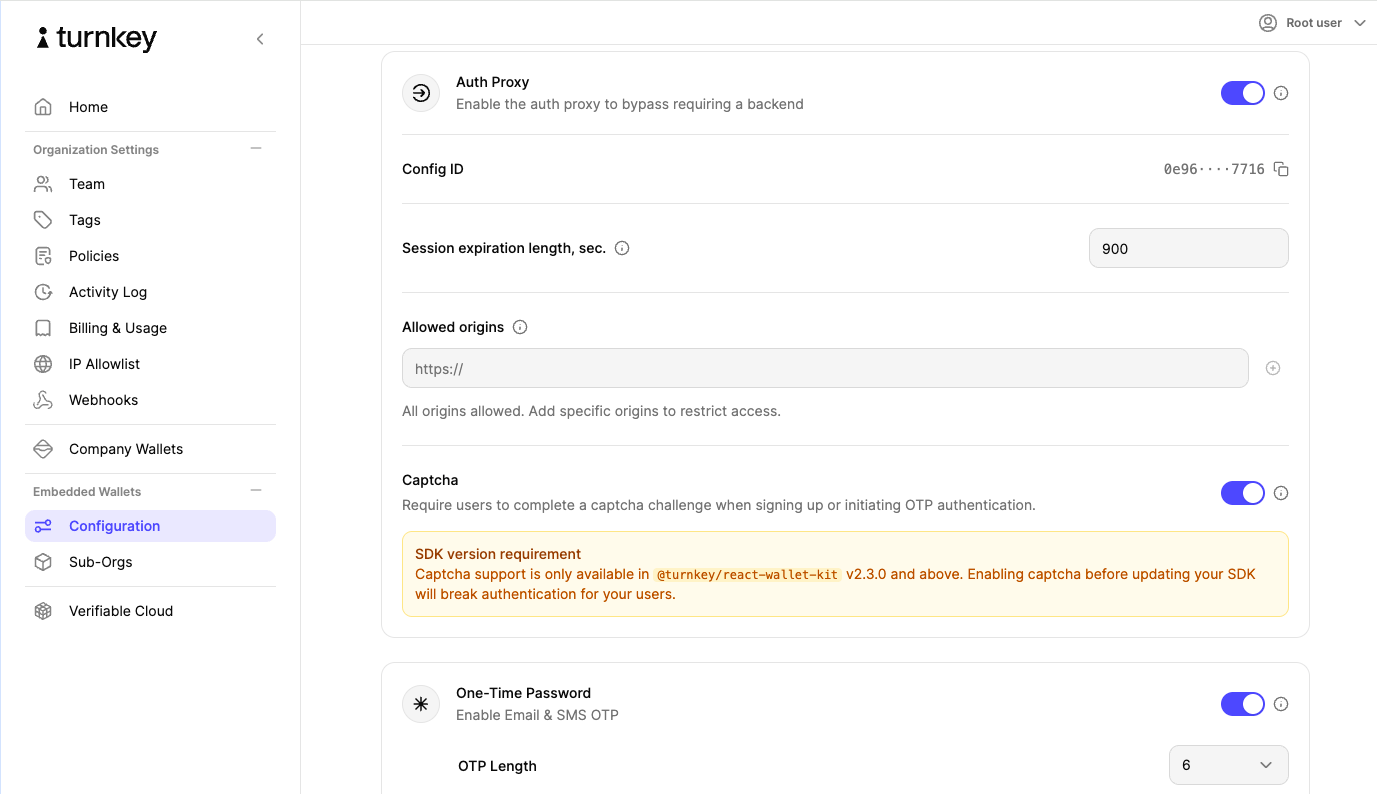
3
Enable CAPTCHA
Toggle the setting on and save your changes. CAPTCHA protection is now active for your organization.
Changes take effect immediately. Protected flows initiated through
@turnkey/react-wallet-kit will display the Turnstile widget.How it works
Once CAPTCHA is enabled for your organization, the@turnkey/react-wallet-kit package handles everything automatically:
- When a user initiates a protected flow (sending an OTP or signing up for a new account), the Turnstile widget renders inside the auth UI.
- Turnstile performs its challenge in the background. For most legitimate users, this is invisible or requires a single click.
- On success, Turnstile issues a token that is passed along with the request to Turnkey’s backend for verification.
- Requests that fail the CAPTCHA challenge are rejected before any auth activity is created.
@turnkey/react-wallet-kit, CAPTCHA enforcement is handled by the SDK automatically once the feature is enabled in the Dashboard.