> ## Documentation Index
> Fetch the complete documentation index at: https://turnkey-0e7c1f5b-docs-captcha-feature.mintlify.site/llms.txt
> Use this file to discover all available pages before exploring further.
# CAPTCHA protection
> Protect your auth flows from bots and abuse using Cloudflare Turnstile CAPTCHA, enabled through the Turnkey Dashboard.
Turnkey integrates [Cloudflare Turnstile](https://www.cloudflare.com/products/turnstile/) to add CAPTCHA protection to authentication flows. When enabled, Turnstile presents a lightweight, user-friendly challenge that blocks automated abuse — bots, credential-stuffing attacks, and signup spam — without disrupting the experience for real users.
CAPTCHA protection is enforced at the two entry points most vulnerable to abuse:
* **Requesting an email or SMS OTP** — captcha is required when the code is sent, covering both signup and login flows.
* **Creating a new account (sub-organization)** — captcha is required during signup via passkey, OAuth / social login, or external wallet.
Once a user has passed the captcha challenge when the OTP was sent, the subsequent OTP verification and login steps are not challenged again — they are protected by a one-time verification token instead. Existing-account logins via passkey, OAuth / social, or wallet are not captcha-challenged.
## Enabling CAPTCHA
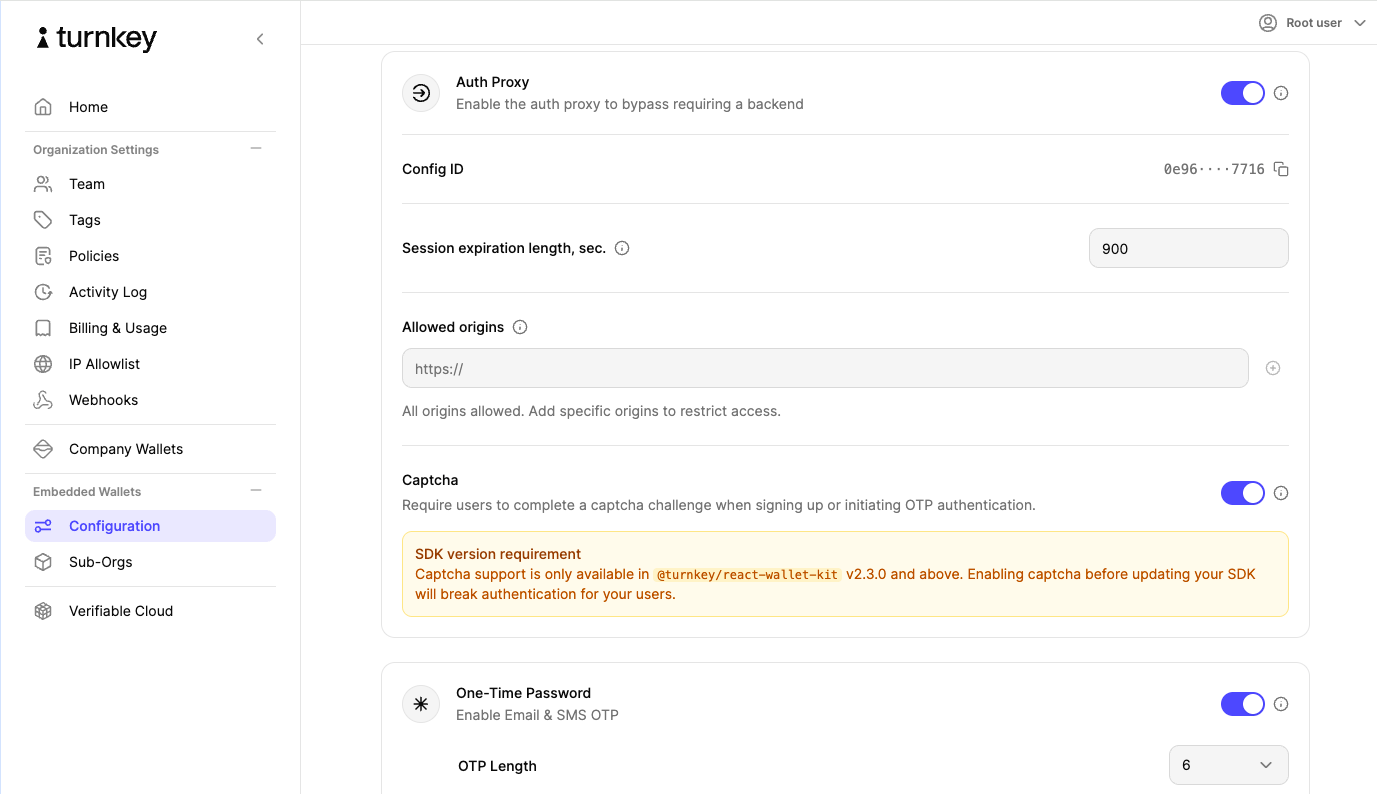
CAPTCHA protection is configured at the organization level in the Turnkey Dashboard. Once enabled, it is automatically enforced for the protected flows — no changes to your application code are required.
Log in to the [Turnkey Dashboard](https://app.turnkey.com) and navigate to **Settings** for your organization.
Locate the **CAPTCHA protection** setting in the Security section of your organization settings.
Toggle the setting **on** and save your changes. CAPTCHA protection is now active for your organization.
Changes take effect immediately. Protected flows initiated through `@turnkey/react-wallet-kit` will display the Turnstile widget.
## How it works
Once CAPTCHA is enabled for your organization, the [`@turnkey/react-wallet-kit`](https://www.npmjs.com/package/@turnkey/react-wallet-kit) package handles everything automatically:
1. When a user initiates a protected flow (sending an OTP or signing up for a new account), the Turnstile widget renders inside the auth UI.
2. Turnstile performs its challenge in the background. For most legitimate users, this is invisible or requires a single click.
3. On success, Turnstile issues a token that is passed along with the request to Turnkey's backend for verification.
4. Requests that fail the CAPTCHA challenge are rejected before any auth activity is created.
**No extra integration code is needed.** As long as you are using `@turnkey/react-wallet-kit`, CAPTCHA enforcement is handled by the SDK automatically once the feature is enabled in the Dashboard.
```tsx theme={"system"}
// No changes needed — CAPTCHA is handled automatically by the SDK
import { useTurnkey } from "@turnkey/react-wallet-kit";
function LoginButton() {
const { handleLogin } = useTurnkey();
return ;
}
```
## Protected auth methods
| Auth flow | Captcha enforced |
| --------------------------------------------------- | ---------------- |
| Email OTP — sending the code (signup & login) | Yes |
| Phone (SMS) OTP — sending the code (signup & login) | Yes |
| New account signup via passkey | Yes |
| New account signup via OAuth / social login | Yes |
| New account signup via external wallet | Yes |
## Related
* [Auth Proxy](/features/authentication/auth-proxy)
* [Authentication overview](/features/authentication/overview)
* [React Wallet Kit — Authentication](/solutions/embedded-wallets/integration-guide/react/auth)
* [React Wallet Kit — Getting started](/solutions/embedded-wallets/integration-guide/react/getting-started)